Every stop on one map,
day by day
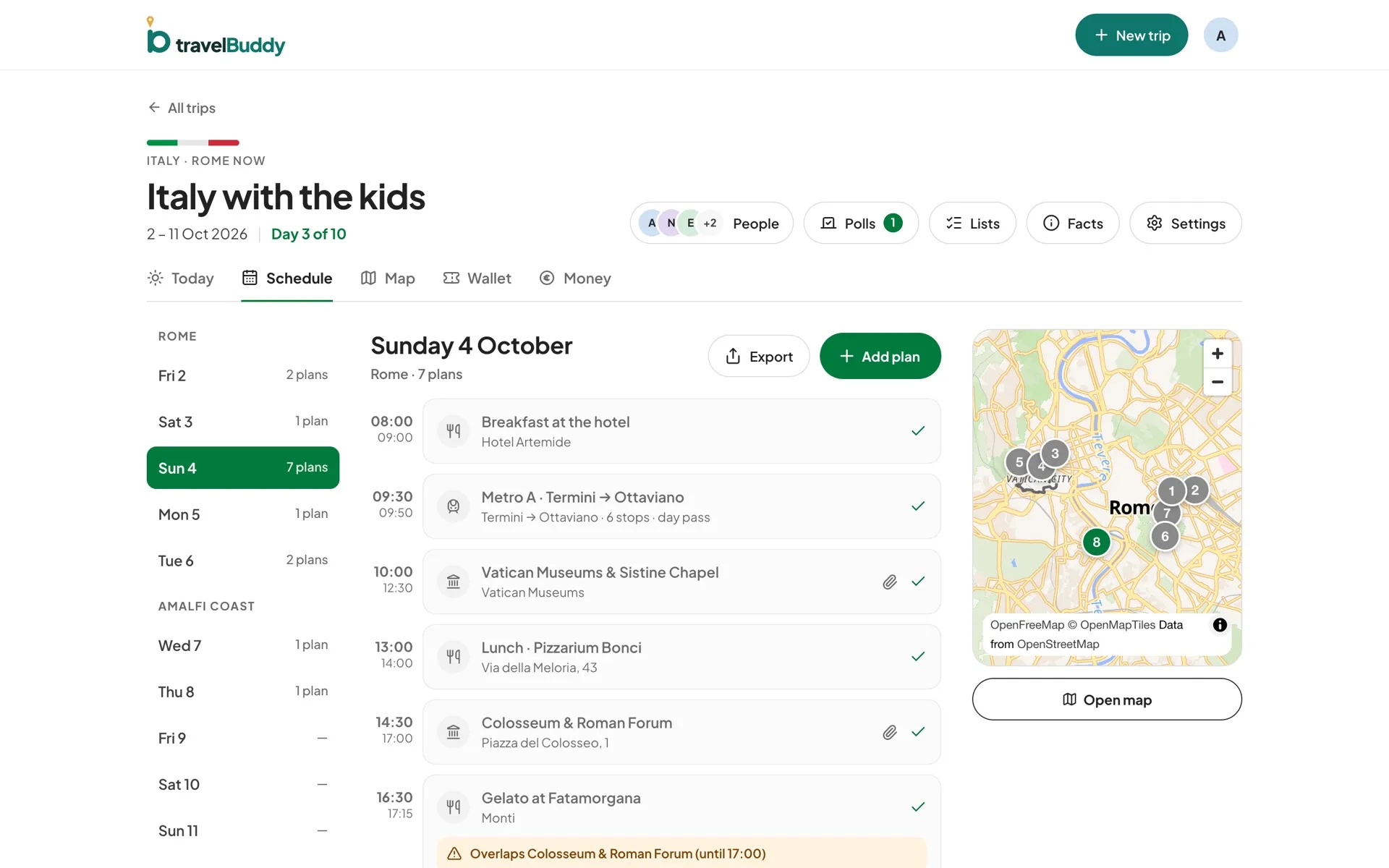
Each plan with a place becomes a numbered pin in schedule order, with a dashed line tracing the route between the stops.
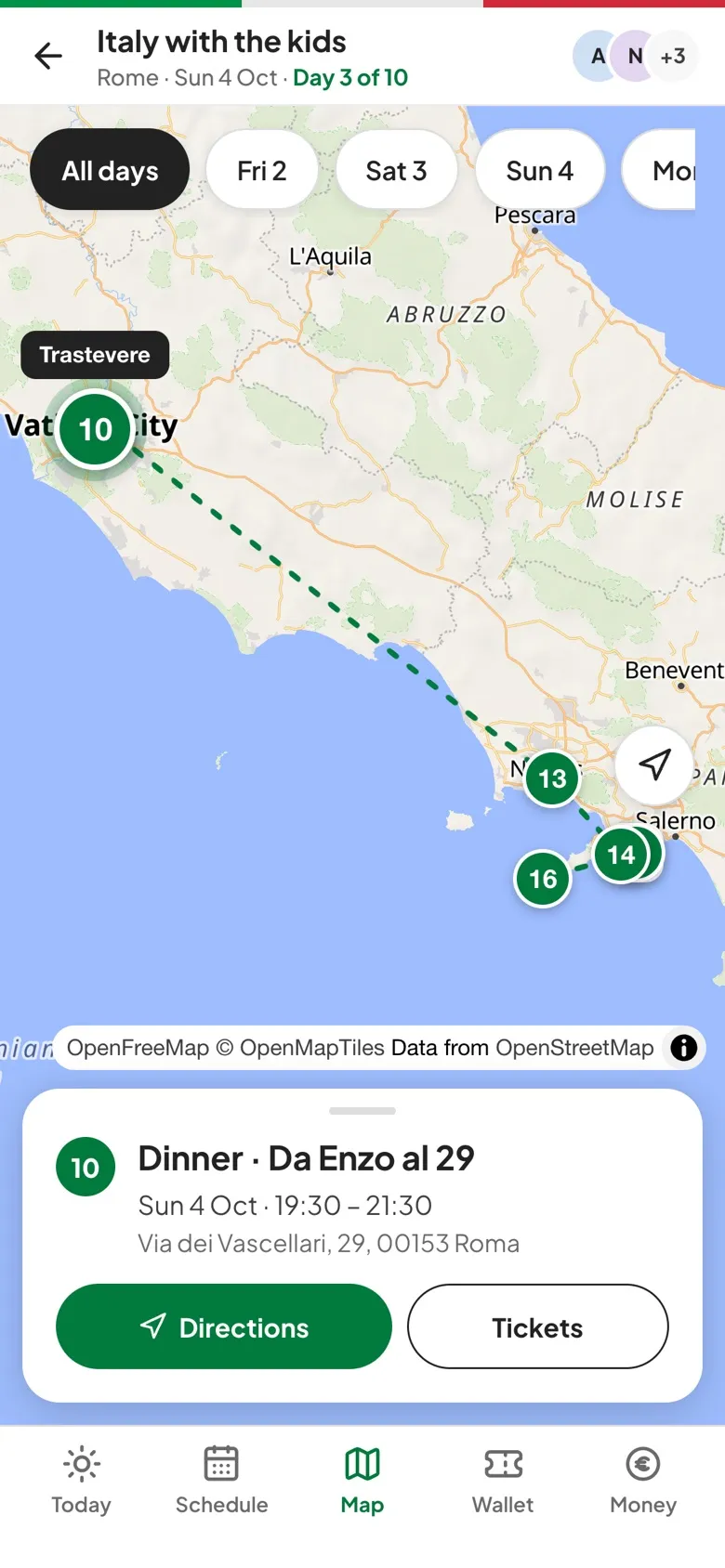
How the map works.
Day filter
Chips across the top switch between All days and a single day, so you only see where today takes you.
Numbered in order
Pins follow the schedule, stops whose plans are over turn grey, and the hotel gets its own square marker with a bed on it.
Directions to the stop
Tap a pin to see the plan's time and address, then tap Directions to open the route in Google Maps.
Where you are
On a phone, Show my location puts a dot on the map so you can see how far the next stop is.
Three steps to get going.
Give plans a place
Pick a search result when you add a plan. That's what puts it on the map.
Choose a day
Tap All days or a single day at the top of the map.
Tap a pin
See the time and address, then open directions, the tickets or the website.
Questions, answered.
Why isn't one of my plans on the map?
A plan needs a place with a map location. If you typed an address by hand instead of picking a search result, the plan stays on the schedule but has no pin.
Does the map work offline?
Partly. Map areas you've already looked at are kept on the phone for up to 30 days, and your stops' names and addresses are always there. You can't download a whole area in advance.
Which app opens the directions?
Directions open in Google Maps, which needs a connection.